Quickstart Guide to Claude Code & GitHub Desktop. With some simple examples to get started with R & Python.
I have three things in mind writing this post:
I have three things in mind writing this post:
- Intended Audience. I am writing for people like this, who are looking to get into Claude Code and haven’t used either Claude Code or GitHub. My goal is to help those getting started learn about AI hallucinations at the start and know about version control.
[NOTE: This has been reworded from the actual question]: Any guides for using Claude Code for data analysis, primarily in R? I don’t currently use Github either. Can you point me to step-by-step instruction starting with set-up and installation? I looked at other websites and have not found them to be accessible intros.
-
Familiarity. You might not like GitHub Desktop or think some of these steps are too obvious. If you have opinions about this, skip over them to the next step. If the guide isn't helpful to you at all, you're probably not the intended audience (c.f. XKCD #2501).

-
Fast. All specific AI tutorials seem to get overtaken by events. So I'm just going to try to get this out now to help people while it's relevant. If you read this in a timely manner and have questions, reach out via Twitter/X. But if you read this in a few months and it’s already outdated, that’s just how it goes.
Plan Overview
- Sign up for Claude account
- Download Claude Desktop
- Sign up for GitHub account
- Get GitHub Desktop
- Connect a folder (“Add Local Repository”) for Claude Code to GitHub Desktop
- Then, install Claude Code
- Learn and Play around with Claude Code using Python and R for data viz (at the same time!)
Steps and Images
1. Sign up for Claude Account
(jump to next step)Go to Claude.ai website.
Get a Claude account.

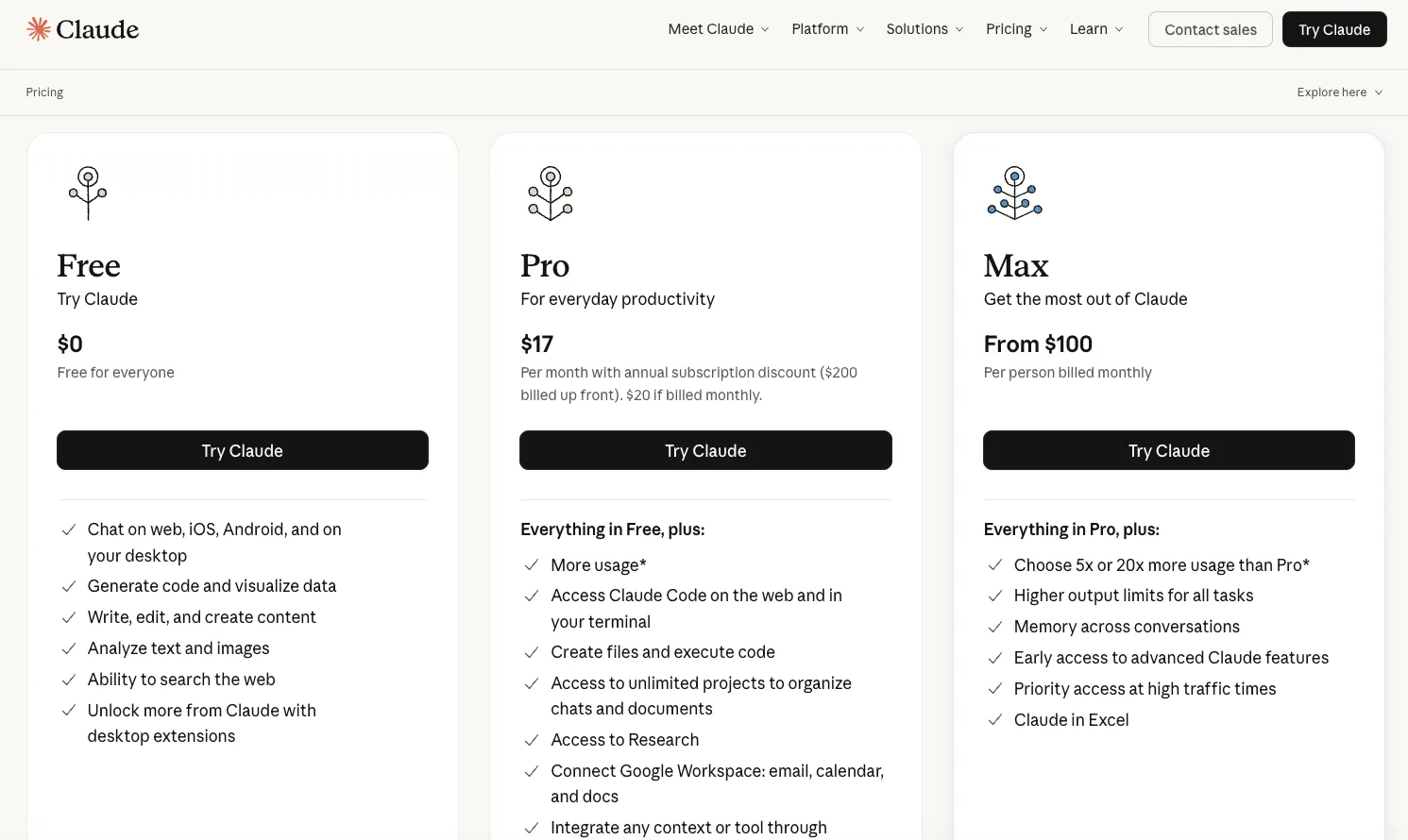
Choose Claude plan:
- $20 monthly (the $17/month is if you pay for a year).
- If you are just getting started, you probably want this option.
- Pick Pro, then choose the Monthly billing. You can upgrade later if you keep hitting the usage limits on Claude Code.
- $100/month for more Claude Code usage and access to Claude Cowork (Cowork is MacOS only for now).
2. Download Claude Desktop
(jump to next step)Install the Claude desktop application for your computer.
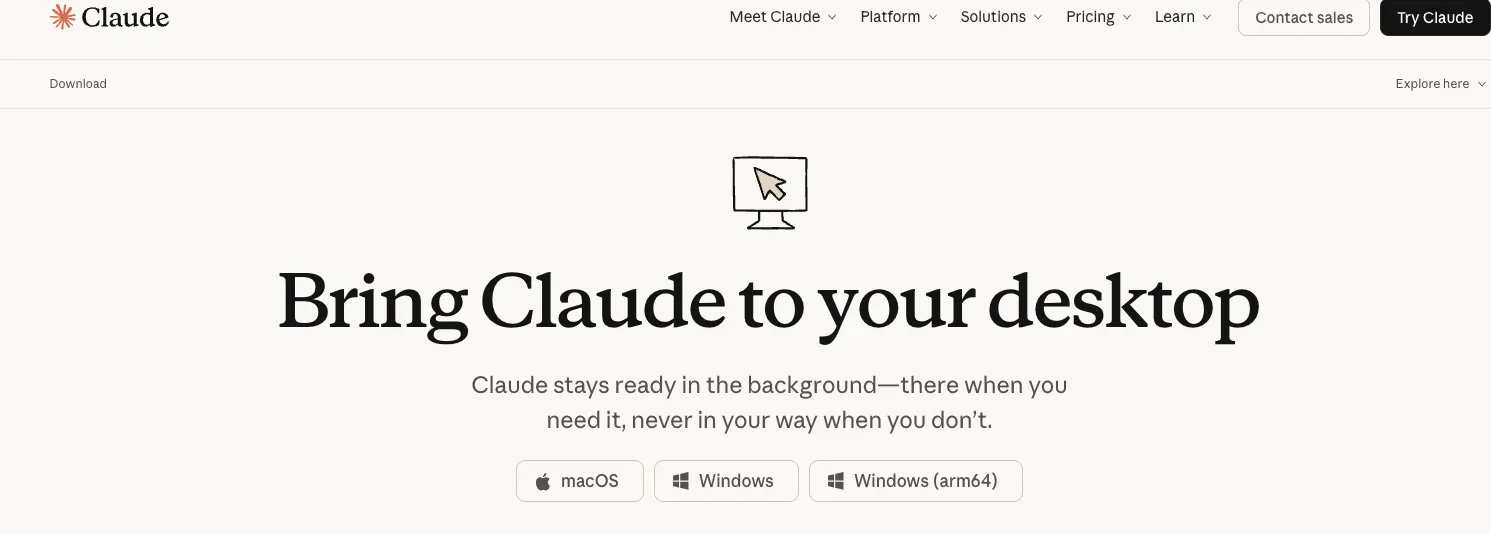
We'll circle back to Claude stuff once you have GitHub set up.
Risk Interlude: Why GitHub? What are Hallucinations?
(jump to next step) GitHub Desktop is an easy way to use version control on your computer. This lets you view what lines of code changed before accepting changes. It lets you decide which changes to accept or discard. You can revert to older versions of data.
Claude Code is "Anthropic's agentic coding tool" Anthropic. The cool thing about AI agents is that they can do a lot of stuff. The scary thing about AI agents is that they can do a lot of stuff. You can limit the damage they can do by limiting the access they have and by using version control to revert the things AI agents changed that they weren’t supposed to. Doing both won’t make you perfectly secure, but it’s good to know.
One way AI agents can change things they aren’t supposed to is editing your data or your writing when you only intended to give it permission to change code. This can introduce what are called “hallucinations,” grammatically correct and persuasive, yet false information made up by large language models (LLMs); for more on this topic, including specific examples of Claude Code hallucinations, see my post about Claude Code's geographic hallucinations about U.S. District Court boundaries.
If you have GitHub for version control, you can revert or reject these kinds of changes. You should also separate data from data viz code, so that asking the LLM to change how the data is presented won’t let it modify the data and it will be more obvious in GitHub if the LLM has touched the data files.
3. Sign up for GitHub account
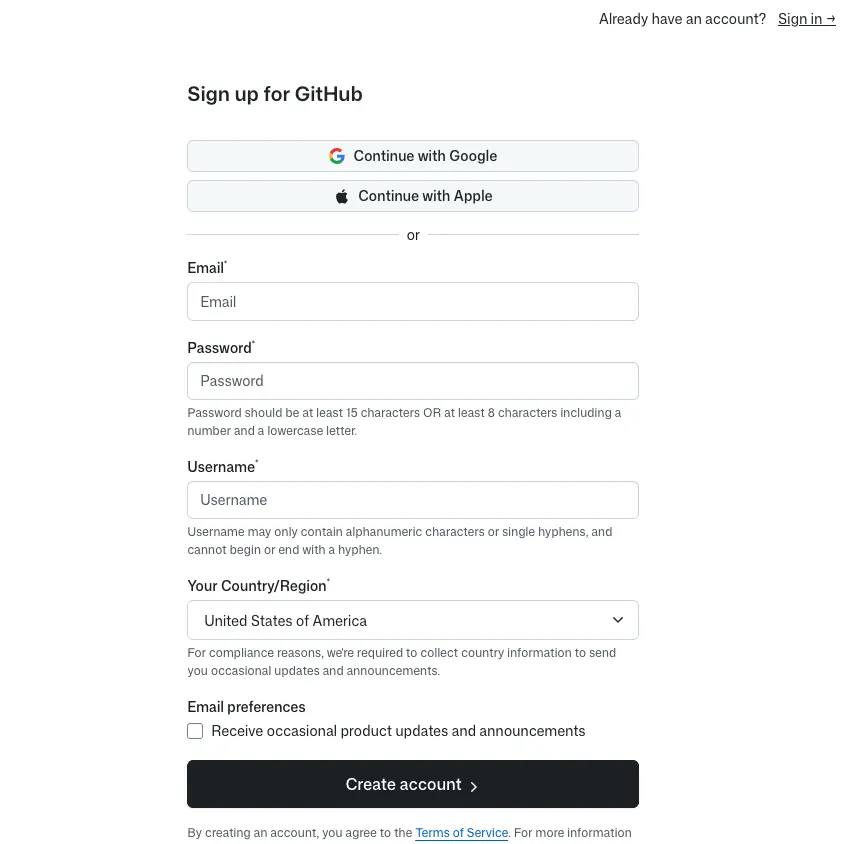
(jump to next step)Go to the GitHub website.

Get a GitHub account.
4. Get GitHub Desktop
(jump to next step)Find the GitHub Desktop download.
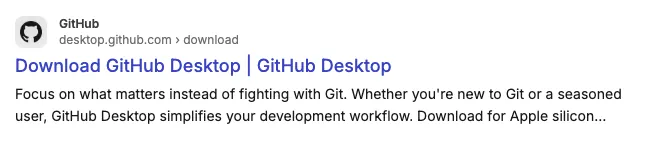
Download GitHub Desktop.
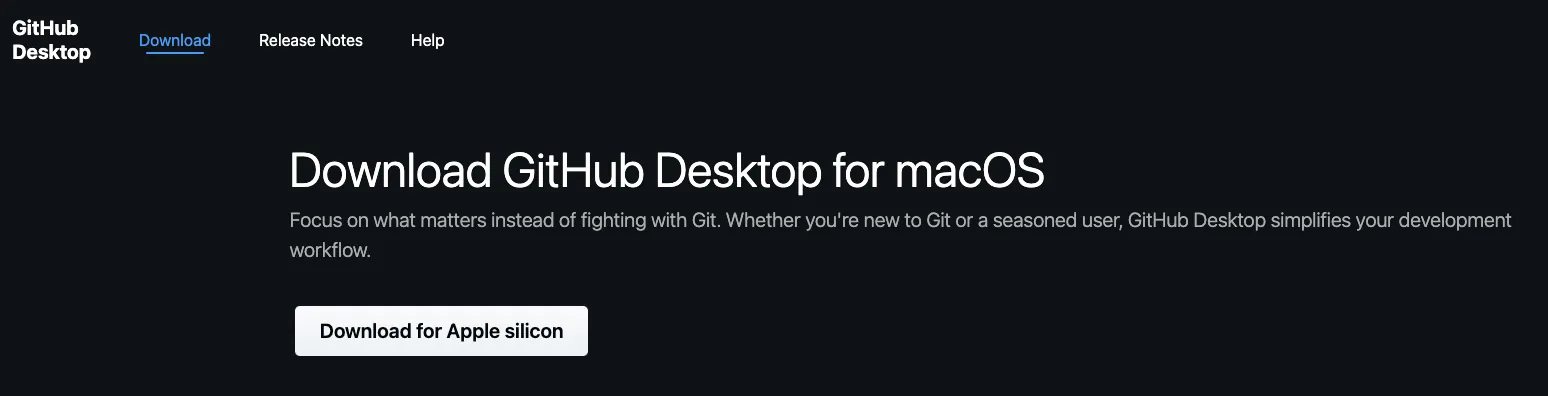
5. Connect a folder (“Add Local Repository”) for Claude Code to GitHub Desktop
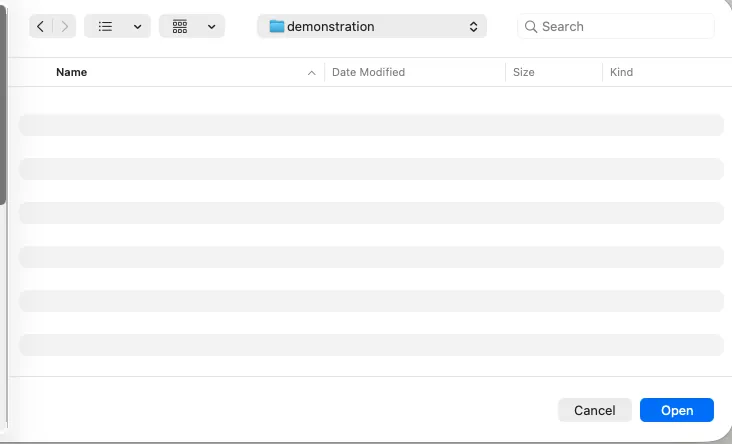
(jump to next step)Create an empty folder somewhere on your computer. For my example, I named the folder demonstration
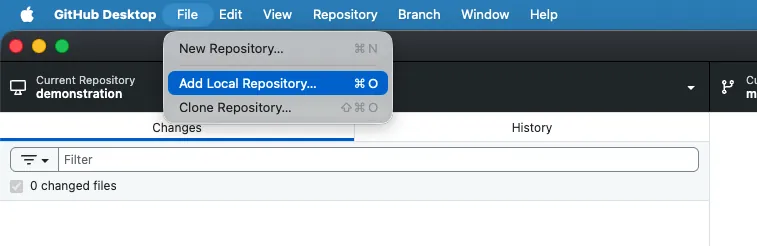
Open GitHub Desktop. Select File > Add Local Repository…
Click "Choose" and select your folder. In my case, the empty demonstration folder.
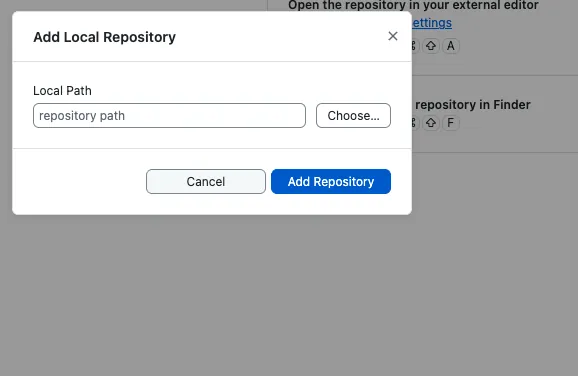
Even though the folder is empty, that's fine for our purposes.
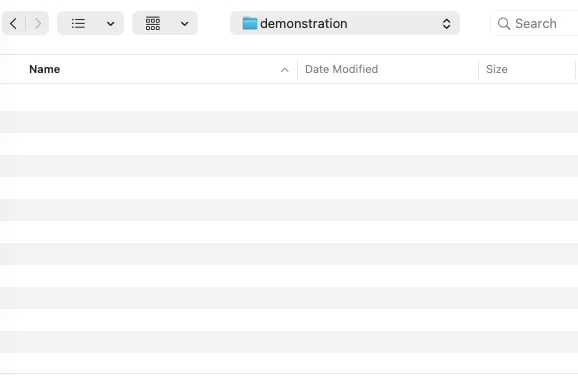
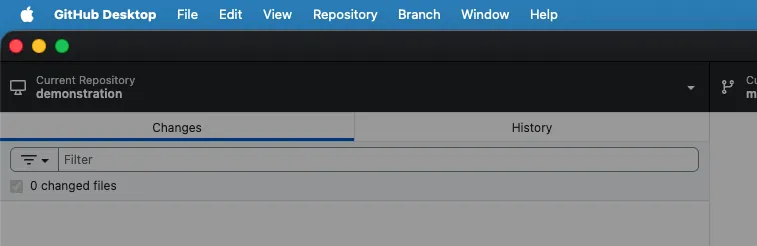
Now you'll see the folder as the name of the "Current Repository" in the Github Desktop main window.
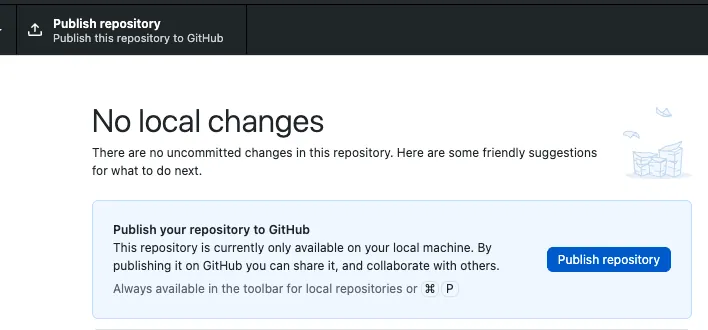
Click either "Publish Repository" button to sync your folder to your GitHub account as a repo.
6. Then, install Claude Code on Claude Desktop
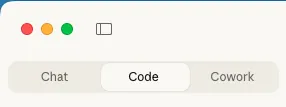
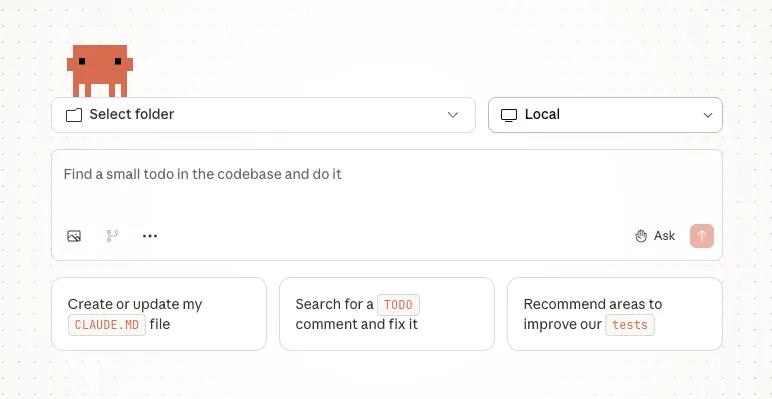
(jump to next step)Open Claude Desktop. Click the "Code" tab. Follow the installation instructions.
Click the "Select folder" dropdown.
Navigate to your empty local folder (for me demonstration), the same one you used with GitHub Desktop, and select that.
7. Learn and Play around with Claude Code using Python and R for data viz (at the same time!).
Here are some suggestions to test out Claude Code for your first session.
7A. Can’t decide whether to use R or Python? Why not both?
“Set up R and do some data viz with the mtcars package. Extract the data and do the same visualization with pandas.”
In my test run, Claude Code created R script and Python script with matching scatter plots (MPG vs HP by cylinders), exported data to CSV, and set up Python venv.
7B. Shiny App and Streamlit App
“Make the R into a Shiny App and make an equivalent in Python.” I have made several Streamlit apps, but I wanted to ask a question with naive wording to demonstrate how someone who only knows R could still use Claude Code to write Python.
In my test run, Claude Code built app.R (Shiny) and streamlit_app.py with sidebar controls, interactive filtering, and data tables.
7C. Ran into an error
(jump to next step) I ran into an error and pasted the message directly into Claude Code without any further instructions. “ValueError: Duplicate column names found..." Claude Code found and fixed the bug by deduplicating display columns with dict.fromkeys().
7D. Separate out the data.
Asked simple question: "Are these following SoC best practices?" In response, Claude Code refactored both the Shiny (R) and Streamlit (Python) apps into modular structure: config, data layer, components, and main orchestration files. This goes to the point I mentioned above about preventing the LLM from changing your data.
7E. Error viewing Shiny and Streamlit locally
Claude tried to open the Shiny and Streamlit on local servers, so I could preview them in a browser. However, the servers didn’t load, so I just told Claude Code “the servers didn't load.”
Claude Code debugged and restarted both servers on fresh ports. I was then able to view the apps with simple, interactive visualizations that were comparable but written in R and Python.
7F. Let Claude Code make a crazy dashboard
To open things up and see what Claude would do, I then said: "Now go crazy and do some really cool data viz. Really have fun with it. Show off." This is not how I would make something for practical use, because I have specific things in mind for how I want to display the data and what story I want the data to tell. But the purpose of this prompt is to show a new Claude Code user what Claude Code can do.
In response, Claude Code created “the ultimate dashboards” with 3D plots (XYZ axes), animations, sunbursts, treemaps, violin plots, PCA, K-Means clustering, radar charts, gauges, parallel coordinates, heatmaps, pairplots, serious statistical tests and a random, not serious “celebrate” just for fun.
However, I had to break the news to Claude Code that yet again "server didn't open." Claude Code checked the errors and restarted the apps.
If you're looking for more structured training on generative AI, consider booking an introduction call.